You need to stop
Stop is a state, not a failure. Images not reached are marked stopped, not failed, and Resume continues where you left off. If you stop during export, Sweepcut reports the number it wrote, such as “Stopped — exported 40 of 300”.
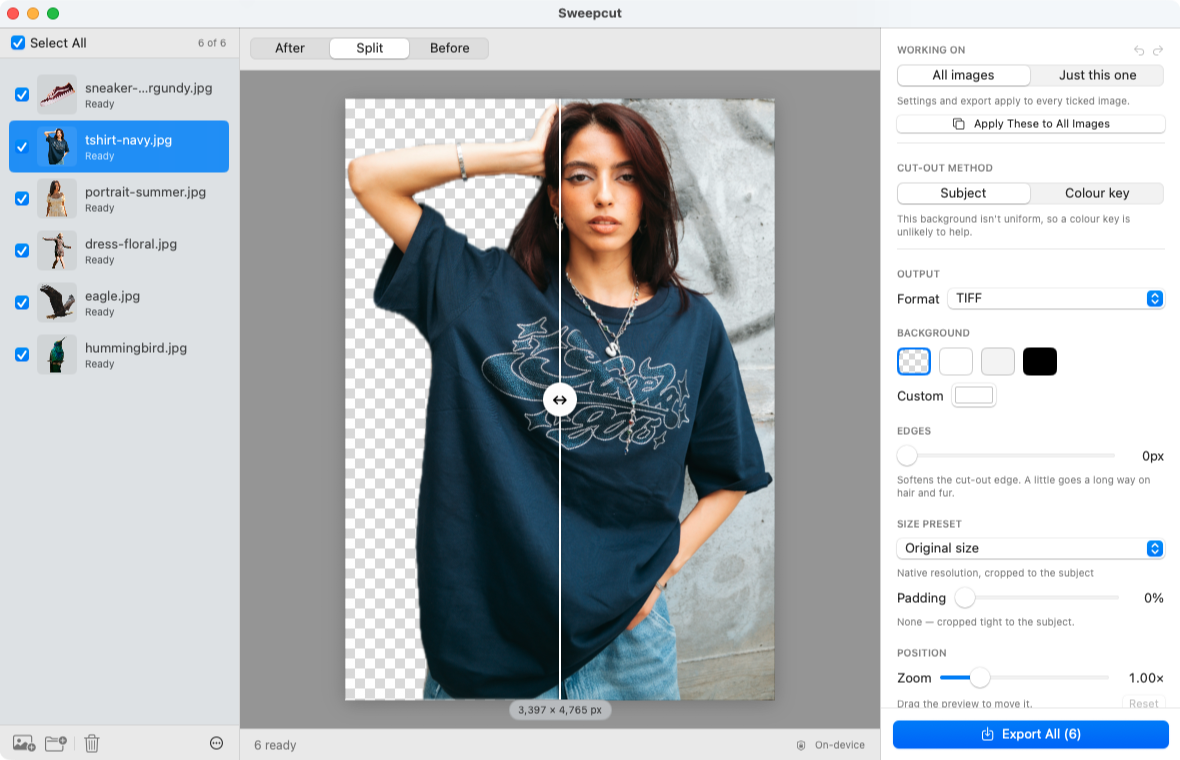
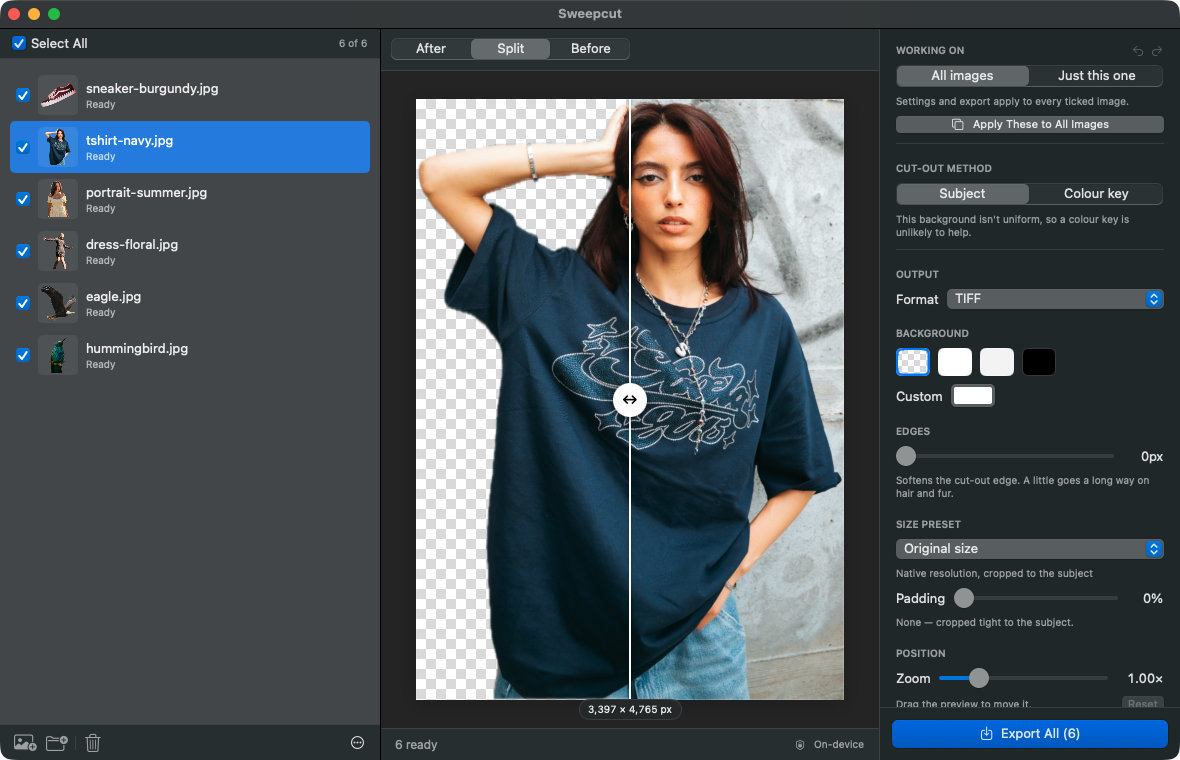
Drop in a folder of photos. Sweepcut finds images in its subfolders, removes each background on your Mac, and lists the results so you can check them before export. Then save them together, sized for your shop and named as they were. Nothing is uploaded, and after activation it works with Wi-Fi turned off.
* Release build on the developer's Mac: 20 real photographs from 7 to 49 MP (average 22 MP), each exported twice as a transparent PNG and an Etsy-sized JPEG. Smaller photos are faster; times depend on your Mac.
Sweepcut looks through subfolders for images. Hidden files and its own Cutouts folder are skipped. It asks you to confirm before adding 500 or more images.
Apple's Vision subject detection removes each background locally. No image data is uploaded.
Rows with no detected subject are flagged with Retry and Remove. Images that need enlarging are labelled, for example “upscaled 2.5×”.
Choose background, size, format and padding for the batch. Override settings on an individual image when needed.
Tick images or Select All. Files go to a Cutouts folder with their original names; taken names are numbered, not overwritten.
A batch should tell you what happened rather than silently treating an incomplete result as finished.
Stop is a state, not a failure. Images not reached are marked stopped, not failed, and Resume continues where you left off. If you stop during export, Sweepcut reports the number it wrote, such as “Stopped — exported 40 of 300”.
Flat graphics or scattered small objects can be declined by Apple's model. The row says “No subject detected”, with Retry and Remove. It is not exported as an unchanged photo. For logos and flat artwork, try the colour key method.
The new export is numbered instead of replacing the existing file. Your original images are not overwritten.
At 500 or more images, Sweepcut asks you to confirm. One scan stops at 20,000 images and tells you, rather than quietly leaving some out.
Pick an export preset and each image is cut out, framed and sized the same way. Use Etsy, Amazon, Shopify, eBay, Pinterest and social sizes from square to story, or set a custom size up to 8,000 pixels. Keep your original filenames, which often carry your SKU.
Read the specific requirements for Etsy, Amazon, Shopify and eBay. Compare every marketplace in the product image size cheat sheet. See also the white background photo guide and transparent PNG guide.
Export as PNG, JPEG, HEIC, AVIF or TIFF. JPEG has a solid background; the other formats support transparency. AVIF appears only where macOS can encode it. Choose transparent, white, grey, black or a custom background colour.
| Sweepcut | Finder Quick Action | Canva | Photoroom | |
|---|---|---|---|---|
| Photos per run | Whole folder, including subfolders; up to 20,000 images per scan | Images you select | Up to 50 images per folder, one folder at a time | Batch; each image counts as one export |
| Photos uploaded | No | No | Yes | Yes |
| Output size | Original size, marketplace presets or custom up to 8,000 px | Transparent PNG; about 12.5 MP for large photos in our test | Results over 10 MP downscaled to 10 MP | Web Batch exports up to 2,048 × 2,048 px |
| Background colour | Transparent, white, grey, black or custom colour | Transparent only | Not checked | Not checked |
| Filenames | Original names kept; conflicts numbered | Adds “Background Removed” | Not checked | Not checked |
| Cost | $19 once | Free with macOS | Paid Canva plan | Monthly export limit by plan |
Finder’s filename and output-size details come from our test, checked 26 October 2026; see Sweepcut vs Preview. Canva details were checked 27 October 2026 in our Mac background remover comparison. Photoroom’s web Batch size and plan limits were sourced 22 October 2026 in the Photoroom comparison. “Not checked” means we could not confirm that detail; it does not mean the feature is absent.
Lots of apps say they do not upload photos. Here is what Sweepcut does and what you can check yourself.
Test it yourself: activate, turn Wi-Fi off, and run a batch. For the full policy, read the Sweepcut privacy policy.
A single scan can find up to 20,000 images. Sweepcut asks you to confirm before adding 500 or more. You can export all ready images or tick only the ones you want.
On the developer's Mac, 20 full-size photos from 7 to 49 megapixels (average 22 MP) took 8.0 seconds, including two exports each. Smaller photos are faster. Your time depends on your Mac; Apple Silicon is recommended.
Yes. Stopping is a state, not a failure. Images not reached are marked as stopped, and Resume picks up where the batch stopped. If you stop an export, Sweepcut reports how many files it wrote.
They are marked “No subject detected”, with Retry and Remove, and are not exported unchanged. For logos and flat artwork, try the colour key method.
Only to activate your license with Gumroad. After activation, background removal and export work with Wi-Fi turned off. No photo is uploaded.
No. Exports go to a Cutouts folder with the original filenames. If a filename is already in use there, the new export is numbered instead of replacing it.
No. Sweepcut does not watch folders. Drop in new photos when you are ready.
Sweepcut needs macOS 14 Sonoma or later. It is built for Apple Silicon and runs more slowly on Intel Macs.
Secure payment by Gumroad · macOS 14 Sonoma or later · Apple Silicon recommended · Back to Sweepcut