Preview
- Open the image in Preview.
- Click the Remove Background button.
- If Preview asks to convert the file to PNG, click Cancel and choose File > Duplicate first to keep your original, or click Convert.
Preview, Photos and Finder all remove backgrounds for free on a Mac, and Sweepcut uses the same Apple model, so the cut-out is the same. What Sweepcut adds is everything a product listing needs around it: whole folders, marketplace sizes, background colours, five formats and your original filenames.
If you only need a few transparent images, the tools already on your Mac may be all you need.
Steps from Apple Support (Preview, Finder Quick Actions, Photos). We ran the Finder Quick Action on three selected photos at once on macOS 26.3, and it saved three full-size transparent PNGs. Checked on 22 October 2026.
Sweepcut uses Apple's Vision subject detection, the same technology behind Preview, Photos and Finder, so it won't find a cleaner edge than the free tools. We don't claim it does.
The difference is what you get at the end. The free tools give you a transparent PNG at the photo's original size. A listing usually needs more: a square canvas at the marketplace's size, some padding, often a white background or a JPEG, and a filename that still matches the product's SKU.
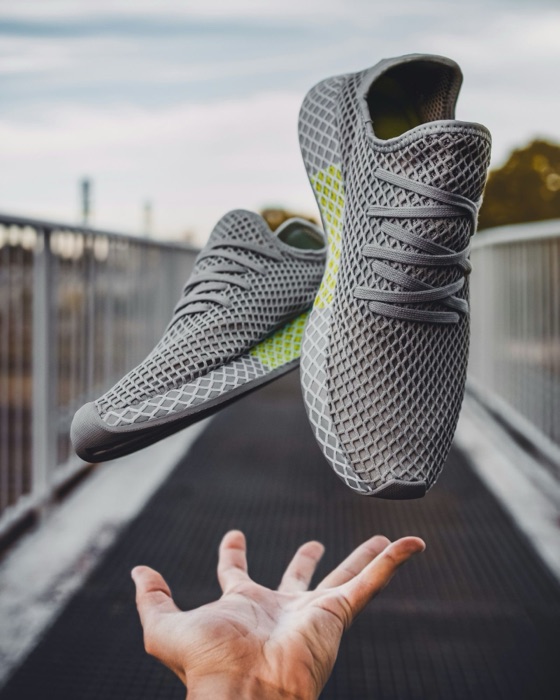
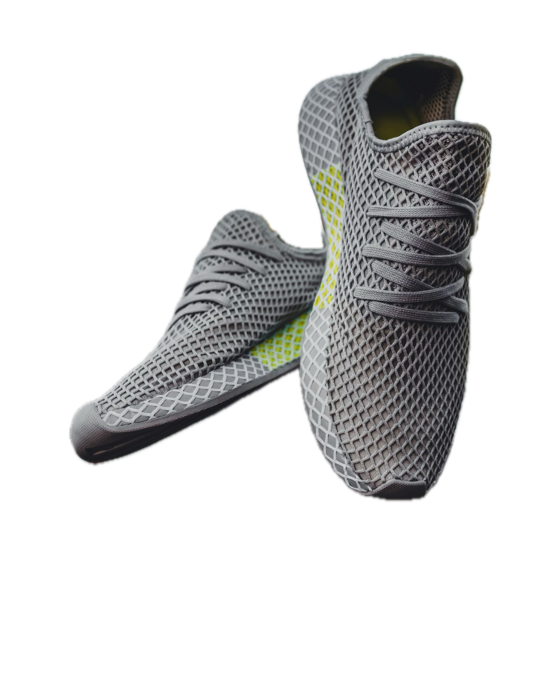
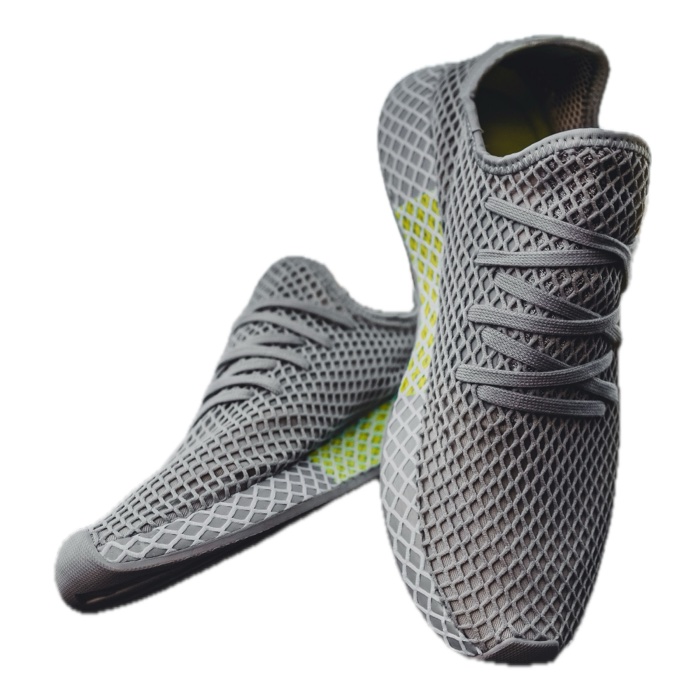
All three are real outputs of the same photo. Sweepcut can also keep the full photo, add padding, or export PNG, TIFF, HEIC or AVIF.
| Sweepcut | Preview, Finder and Photos | |
|---|---|---|
| Images per run | A whole folder, subfolders included | Preview and Photos: one. Finder: the images you select |
| Output size | 9 marketplace presets or any size up to 8000 px, with padding; or the original size, cropped or full frame | The photo's original size |
| Background | Transparent, white, grey, black or any colour | Transparent |
| Formats | PNG, JPEG, HEIC, AVIF and TIFF | PNG |
| Filenames | Your original names, in a Cutouts folder, so nothing is overwritten | Finder adds "Background Removed"; Preview changes the file unless you duplicate it first |
| Review before saving | Every result in a list, with before and after, until you export | Finder saves the files straight away |
| Flat logos and plain backdrops | Cut by colour, offered when Apple's model finds no subject | Instant Alpha in Preview, by hand, one image at a time |
| Price | $19 once | Free, built into macOS |
With Finder: select the 300 photos and run Remove Background. You get 300 transparent PNGs at each photo's original size, named like SKU-4471 Background Removed.png, saved next to the originals. Each one still needs a 2000 × 2000 canvas, some padding, a background if you want one, a new name, and moving to its own folder.
With Sweepcut: drop the folder in, pick the Etsy preset and a background, check the list, then export once. Every image comes out at 2000 × 2000 with the same padding, named SKU-4471.png, in a Cutouts folder. On the developer's Mac, 20 photos averaging 22 MP took 8 seconds to cut out and export twice each.
Which should you use? Stick with Preview or Finder if you need a few transparent images. Use Sweepcut if you list products and need them sized, on a background and named for your shop.
No. Both use Apple's Vision subject detection, so the main cut-out is the same. Sweepcut adds a second method, cut by colour, for flat logos and items on plain backdrops, and it flags images where no clear subject was found instead of exporting them.
Yes. Select the images, Control-click and choose Quick Actions > Remove Background. Each result is saved next to its original as a full-size transparent PNG with "Background Removed" added to its name.
Open the image in Preview and click the Remove Background button. If Preview offers to convert the file to PNG, choose File > Duplicate first to keep your original.
Sweepcut needs macOS 14 Sonoma or later. It's built for Apple Silicon and runs more slowly on Intel Macs.
Secure payment by Gumroad · macOS 14 Sonoma or later · Apple Silicon recommended · Back to Sweepcut